Approvals for church expenses: Sign-offs without
the email chain.
Turn on approvals and each new expense waits for an admin, with its receipt, category and fund on one card.
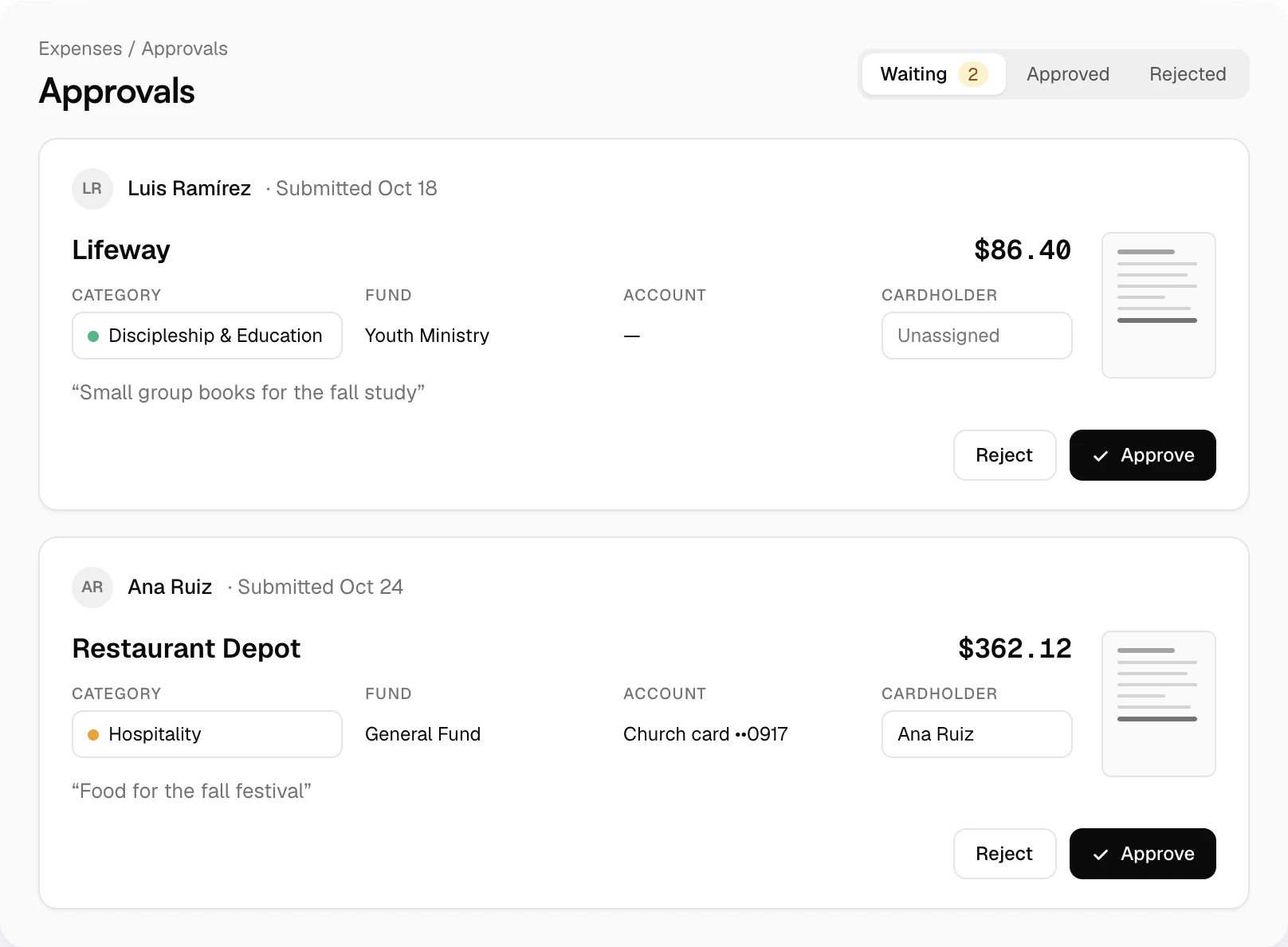
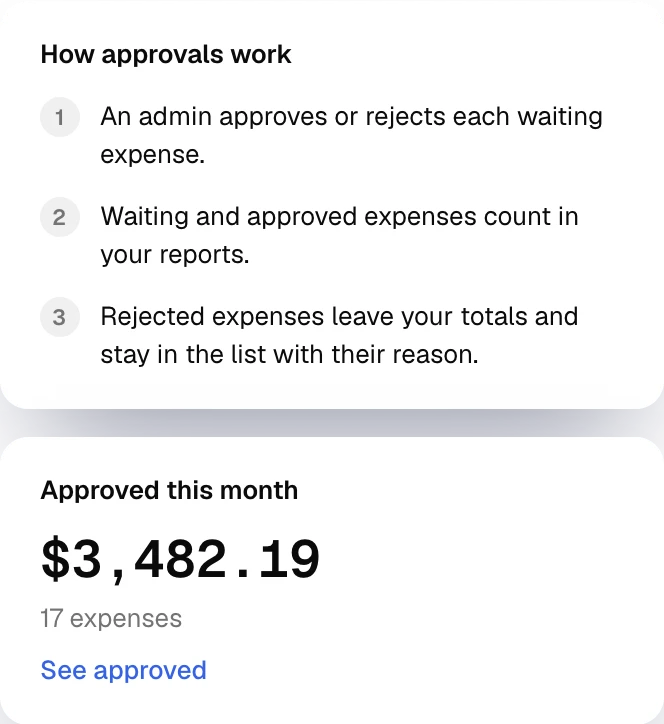
Before and after
Approval without the chase.
| The old way | With Altarflow |
|---|---|
| 01The old way: Forwarding receipts to the treasurer for an OK | With Altarflow: Each waiting expense sits on one card with its receipt |
| 02The old way: A yes buried in a reply-all thread | With Altarflow: Approve or Reject on the card, stamped with a name |
| 03The old way: A rejected charge still sitting in the totals | With Altarflow: Rejected expenses leave your totals and keep their reason |
| 04The old way: Remembering who owes the church for a personal charge | With Altarflow: The charge is marked Owed until payroll takes it back |
Settings
One switch turns it on.
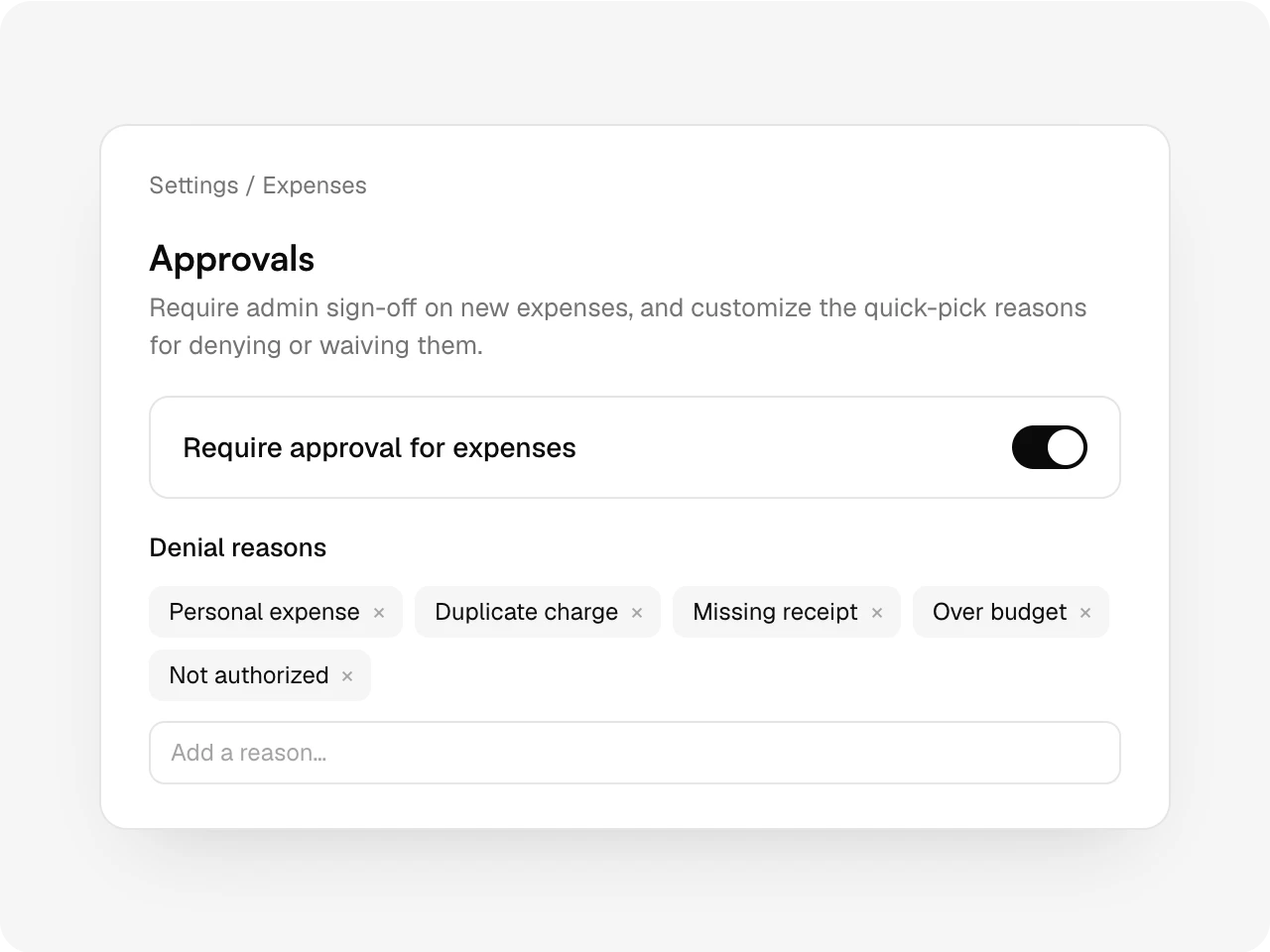
Turn on Require approval for expenses. From then on, expenses typed in, booked from a bank line or created from a receipt wait for an admin. Set your own list of reasons for saying no.
Expense drawer
Approve from the expense itself.
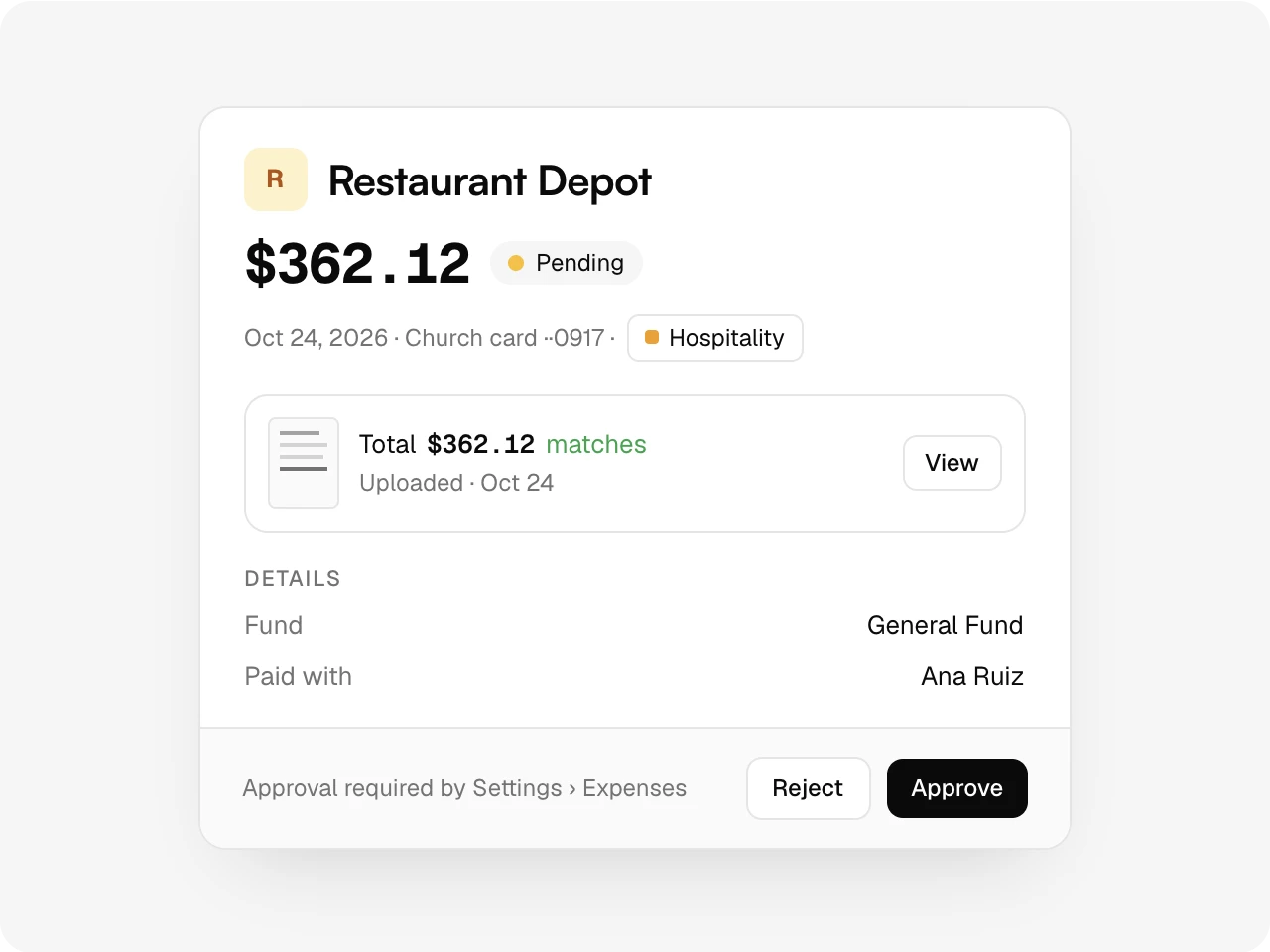
A waiting expense shows Pending everywhere it appears. Open it from All expenses or the overview and Approve and Reject sit at the bottom, next to its receipt and details.
Reject
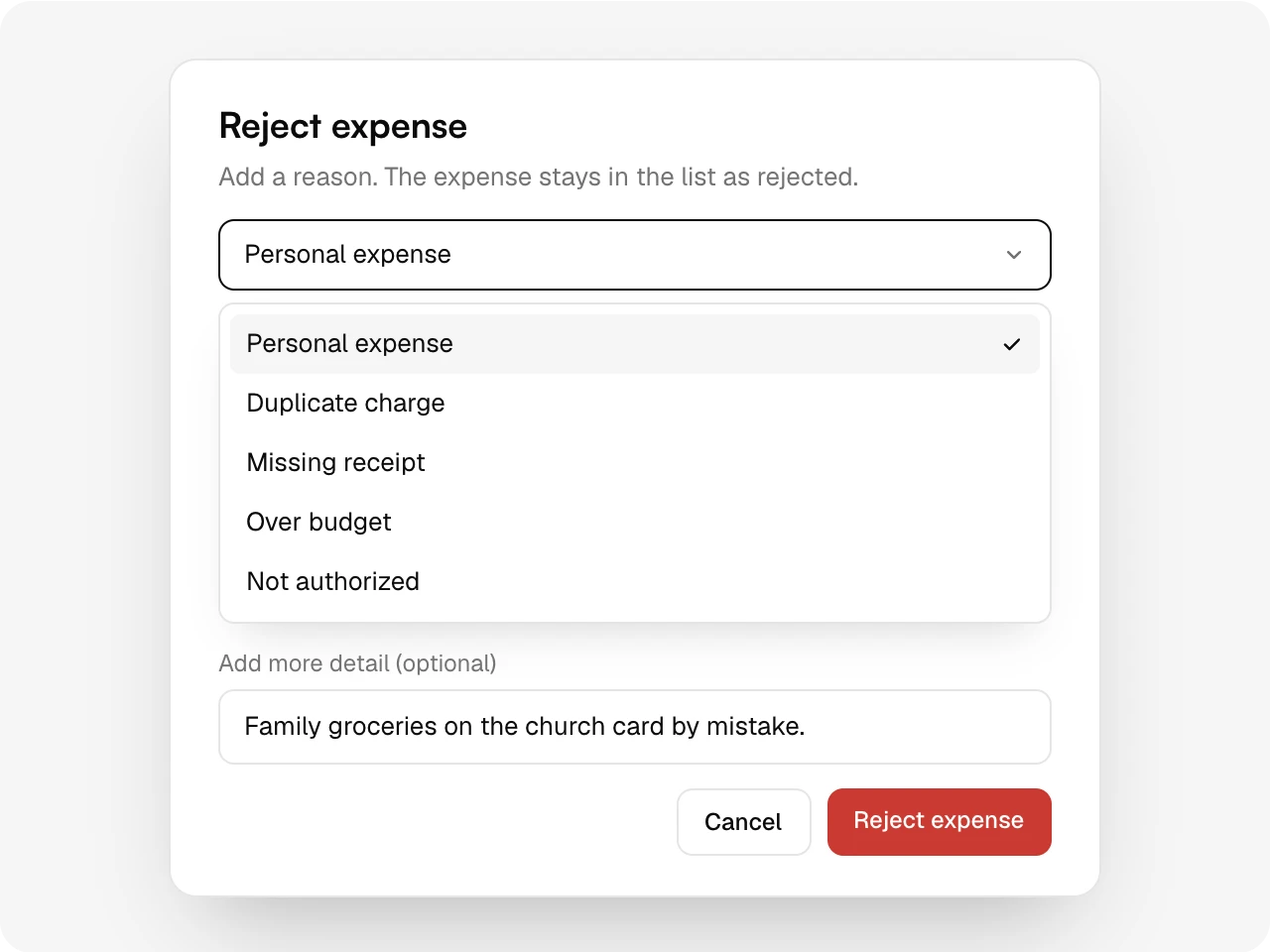
Every no comes with a reason.
Pick a reason from your church’s list or type your own. A rejected expense leaves your totals but stays in the list with its reason, so nothing quietly disappears.
Payroll deduction
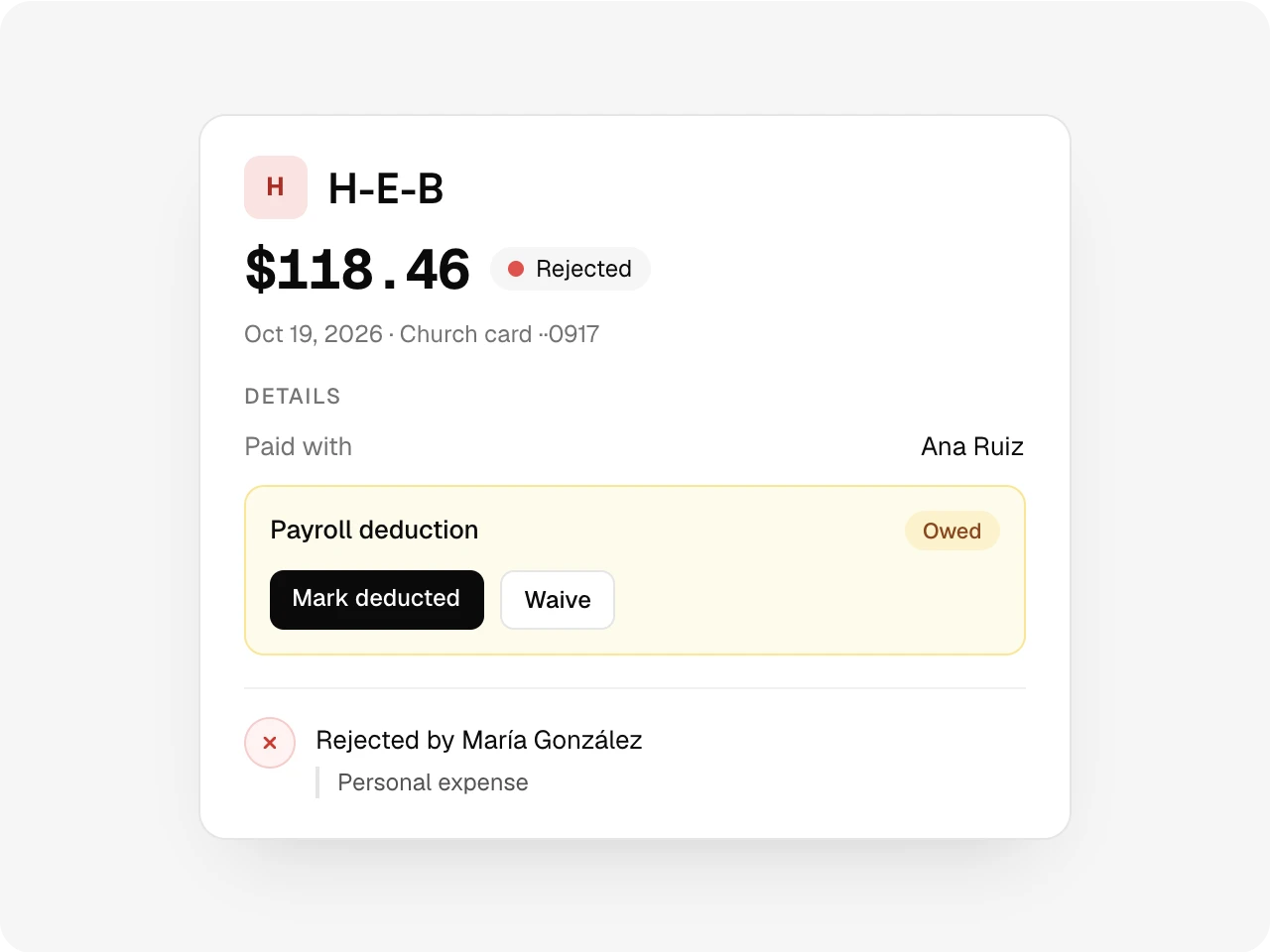
Personal charges get paid back.
Reject a church card charge assigned to a cardholder and it is marked Owed. Mark it deducted when payroll takes it back, or waive it with a note. A report lists every deduction.
On the record
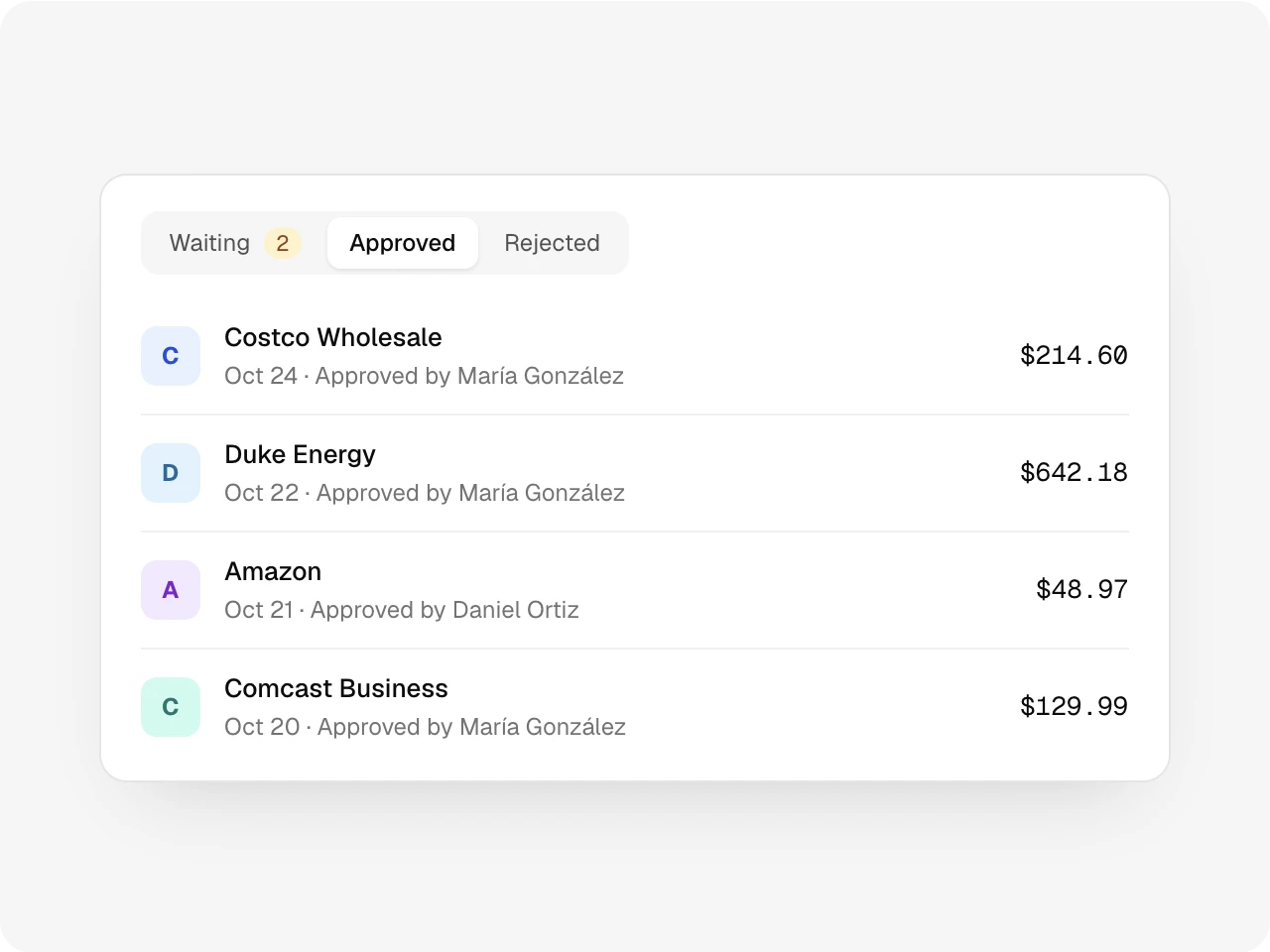
Who said yes, and when.
Every decision carries a name and a date. The Approved and Rejected lists show who decided, and each expense’s activity keeps the step, with the reason for any no.
Also included
A waiting count in the sidebar, Reopen to undo a decision, your own denial and waive reasons, Approved this month on the Approvals page, a Status filter on All expenses, and the Payroll deductions report.
One record
Works with the rest of Altarflow.
- Expenses
Expenses
Waiting and approved expenses count in your totals. Rejected ones leave them.
- Receipts
Receipts
The approver sees the receipt next to each waiting expense.
- Team and permissions
Team and permissions
Only admins approve. Everyone else gets the pages they need.
Plans
Approvals are on Grow and Bloom.
Seed
$0
- Opens as a preview
- Upgrade to require approvals
Grow
$49.99/mo
- Everything on this page
- 3 seats for your team
Bloom
$99.99/mo
- Everything on this page
- 20 seats for your team
Approvals come with Expenses. Any admin on your team can approve or reject.
What is Altarflow Approvals?
Altarflow Approvals makes each new church expense wait for an admin's sign-off. The waiting expense shows its receipt, category and fund on one card, and the admin approves or rejects it with a name and date on the record. A rejected church card charge assigned to a cardholder is marked Owed until payroll takes it back.
Who can approve expenses?
Any admin on your team. There is no amount threshold or named approver yet.
Do waiting expenses count in reports?
Yes. Waiting and approved expenses count in your reports. Rejected ones leave your totals and stay in the list with their reason.
Is the approver notified?
Not by email or push yet. A count on Approvals in the sidebar shows what is waiting, and the Expenses overview lists it under Needs a look.
Which plans include approvals?
Grow and Bloom, as part of Expenses. On Seed the page opens as a preview.
Sign-offs without
the email chain.
Setup takes one sitting. Hablamos español.